
Seasonality Trading App
Tutorial
In this page, we will walk you through the details of Seasonality trading app and how to use it for your trading decisions. This is a fully web-based app running in a cloud VPS server and hence there is nothing to dowload or install. All you need is the subscription of the app, a computer with web browser and an internet connection. If you do not have subscription for the services, get it here.
This and all our other trading apps are extremely computation intensive as they perform millions of calculations to bring you the results of analysis and it may take from one minute to several minutes depending upon the size of the Index on which the analysis is being run. As an example, an index of 500 Stocks will take more time than the index of 30 Stocks. So, please be patient after you click the Submit button.
Please note: Although we may have used examples from one or two countries and couple of indexes in this tutorial, but the app is available for Stocks and ETFs from over 36 countries in 4 continents (Asia, Europe, Oceania and Americas) covering more than 150 indexes and over 45,000 Stocks and ETFs.
Seasonality trading app - Getting started
The Seasonality trading app can be accessed in one of the three different ways. First, from the Sapphire Capitals main portal’s Seasonality Trading App page; Second, from your Sapphire Capitals’ account dashboard page; and third, from a new tab in your web browser, all are described below.
Log in to you Sapphire Capitals account
Before you start using the app, you will need to login to your Sapphire Capitals account. Go to the Sapphire Capitals portal at www.sapphirecapitals.com and click on LOGIN at the upper right corner of the page to go to the login page. The login page appears like below.
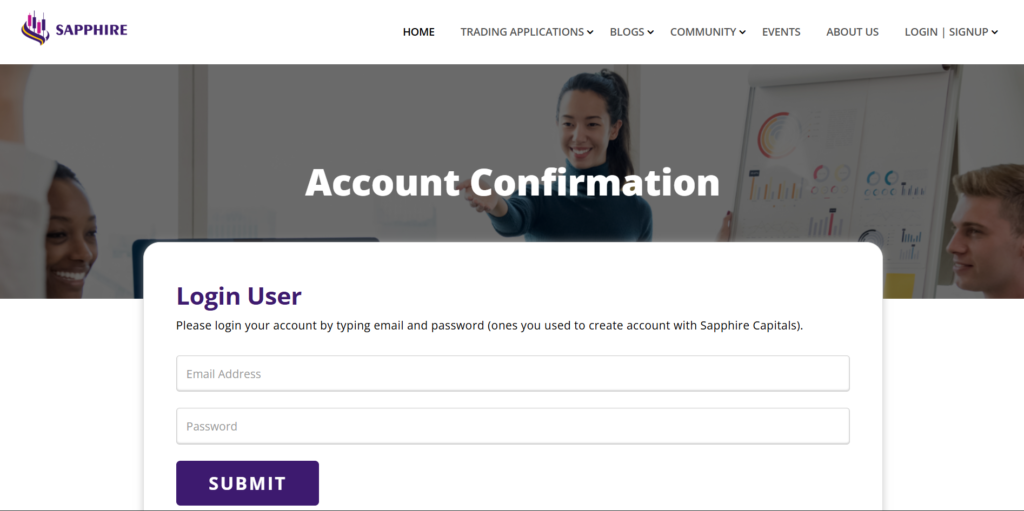
Please login with your email and password, if you already have an account with Sapphire Capitals. If you are a new subscriber, you would have received a temporary password with the welcome email after you had subscribed the service. You can login using your email and temporary password. It is recommended to change the password to a new one that you can easily remember and only known to you.
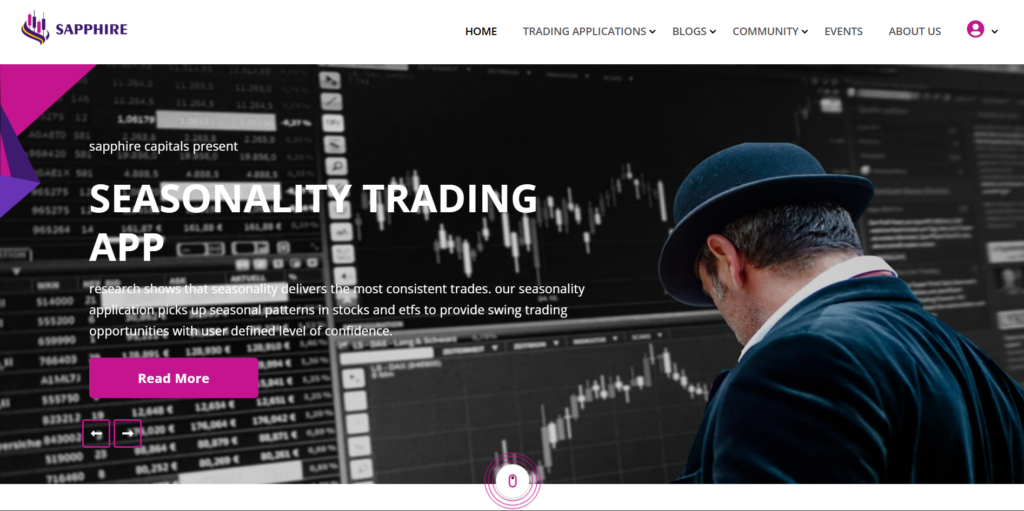
Once logged in, the Login/Signup menu at the top right corner is changed to an icon as shown in the image below.
Launch App from Sapphire Capitals main portal's Seasonality Trading App page
Launch App from Sapphire Capitals main portal's Seasonality Trading App page
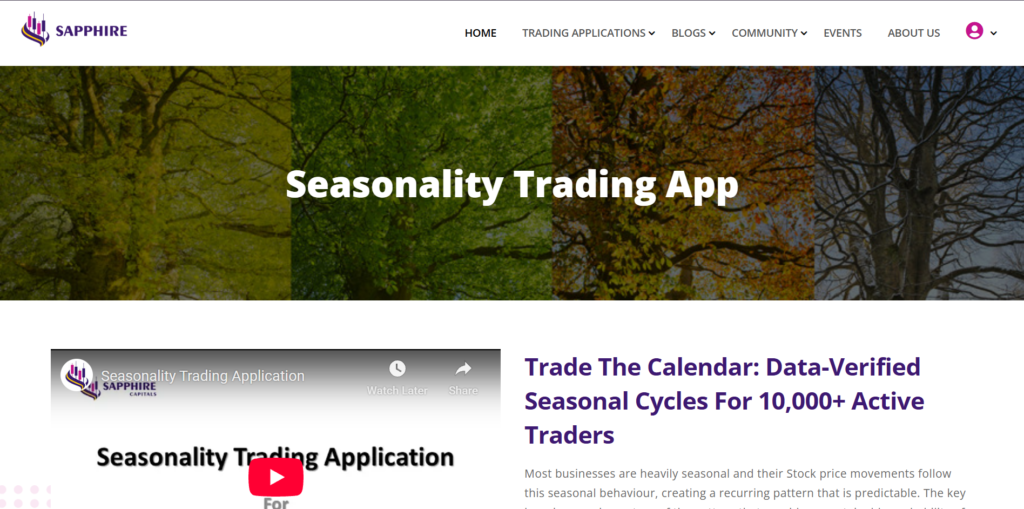
Please go to the top of Sapphire Capitals portal and from the pull down menu under TRADING APPLICATIONS, select Seasonality Trading. This will take you to the Seasonality trading information page as shown below.
In the Seasonality trading information page, please scroll down to the bottom of the page. The bottom of the page should look like this, as shown in the image below.
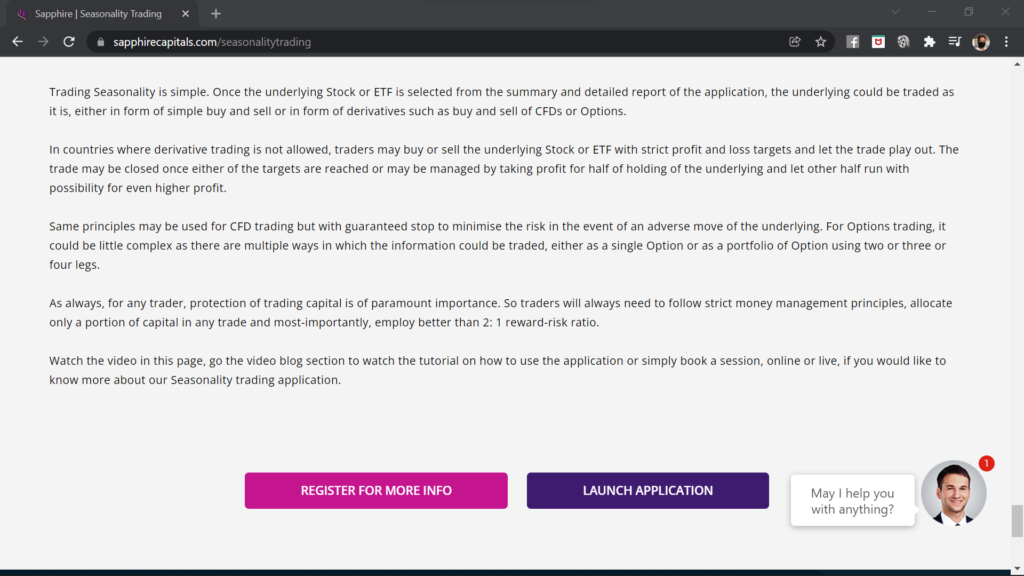
Please click the deep purple button “LAUNCH APPLICATION” which will open a new tab in your web browser with the Seasonality trading app’s input (filter) page.
Launch App from Sapphire Capitals' user account dashboard
Launch App from Sapphire Capitals' user account dashboard
Go to the top right corner of the Sapphire Capitals portal. Since you are already logged in, a dropdown menu will appear when you click the down arrow button. In the drop down menu, you will see the Dashboard option.
Clicking that option will take you to a page which looks something similar to the following, depending upon your current subscriptions. If you are subscribed to Seasonality trading app and any other apps, then only those items will appear on the dashboard.

In the dashboard where the “Seasonality Trading Application” appears, please click the dark purple button with “LAUNCH APPLICATION” button to access the app and it will open a new browser tab with the input filter page.
Launch App from a new browser tab
Launch App from a new browser tab
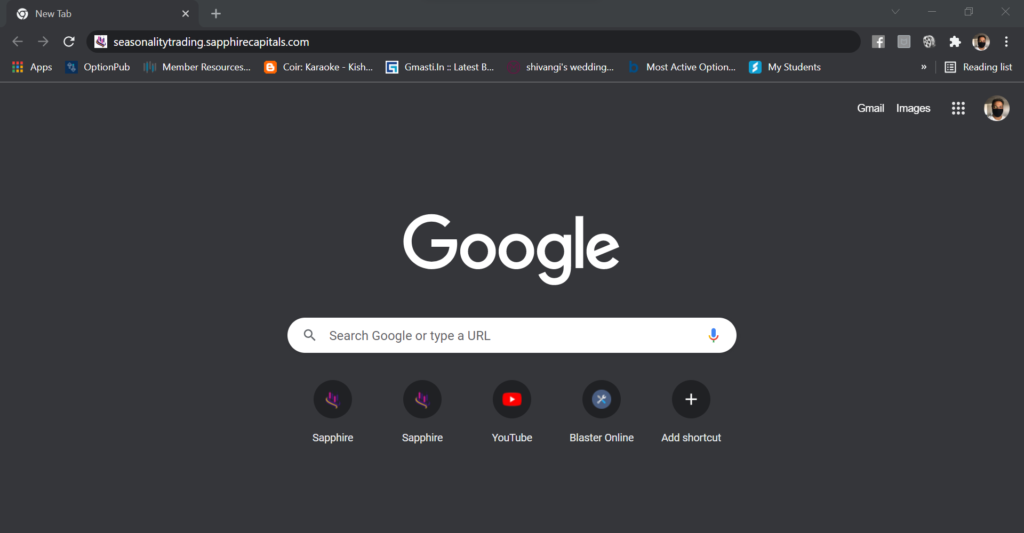
Finally, you may also open your browser or open a new tab in your web browser and type the following URL seasonalitytrading.sapphirecapitals.com as shown in the image below. If you are already logged in to Sapphire Capitals portal in your computer, it will open the Seasonality trading app’s input page.
If you are not logged in, it will ask you to login with your email and password as mentioned earlier. After clicking the SUBMIT button on the login page, it will open the Seasonality trading app’s input page.
Whichever way you launch the app, you will see the following screen.
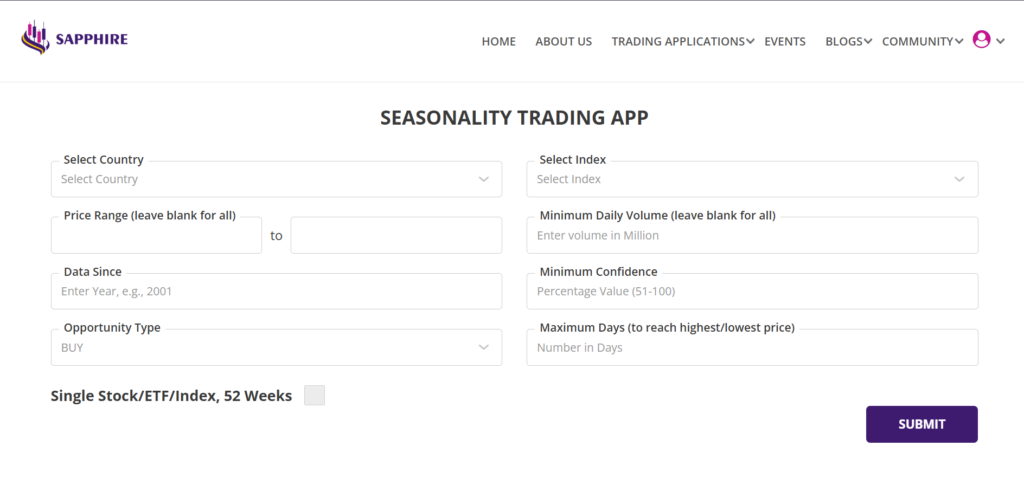
Input to the Seasonality trading app
The Seasonality trading app input page has two separate input sections, as explained below, depending upon how do you want the analysis to be performed by the app.
Main input section of the app
A total of 8 input parameters, some mandatory and some optional, make up the main input section of the Seasonality trading app. This is the input section you will use most of the time as this is intended for finding positive expectancy Stocks in an index or the major ETFs in the country of your interest.
Full details of the parameters for this input section are described in a little while.
Important point to note:
While using the main input section of the Seasonality app, it does not require you to provide any input on starting date or duration of times for examining existence of seasonality in the underlying Stocks or ETFs. When you run the app, it starts looking for existence of seasonal patterns from the Monday of the week following the week in which you ran the app. As an example, if you are running the app on an Wednesday of Week 4 of the year, the app will look for seasonal patterns of your selected Stocks or ETFs for Week 5 or the week beginning following Monday for 9-week length of the window. This ensures that, you only look for opportunities that are immediately tradable rather than whole lot of information that is of no immediate use to you.
However, if you are still interested to see how some Stocks or ETFs demonstrated seasonal behaviour at any time during the year, you may use the alternative option of Single Stock/ETF/Index, 52 Weeks option described below.
Single Stock/ETF/Index, 52 Weeks option
If you are looking to analyse only one Stock or ETF for seasonality over the 52 weeks period, you will use this input section. This is enabled by ticking the box next to “Single Stock/ETF/Index, 52 Weeks“. The input screen switches to a different format as shown in the image below.
Please note that, this optional feature is currently in Beta version (in trial phase and not fully ready for commercial release) and may not be available to your subscription. However, if available to your subscription, please do play with this feature of the app and provide feedback to us.
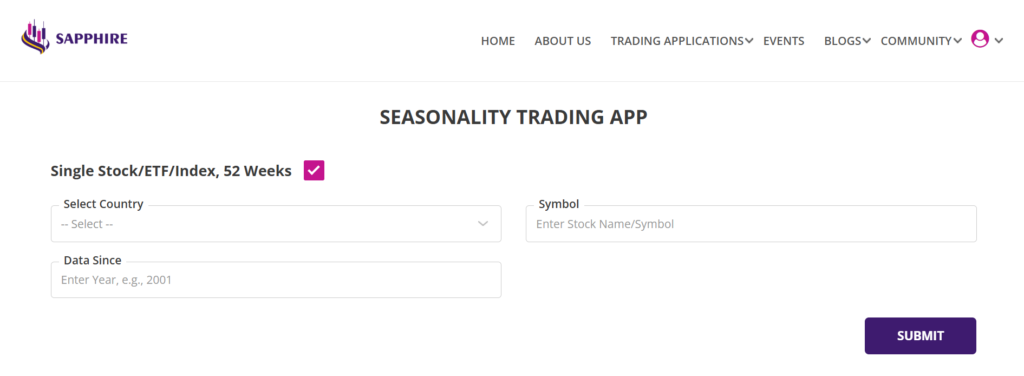
Inputs to the Seasonality trading app - main section
The main input section has 8 filter criteria marked from 1 to 8 followed by a submit button at 9 as shown in the image below.
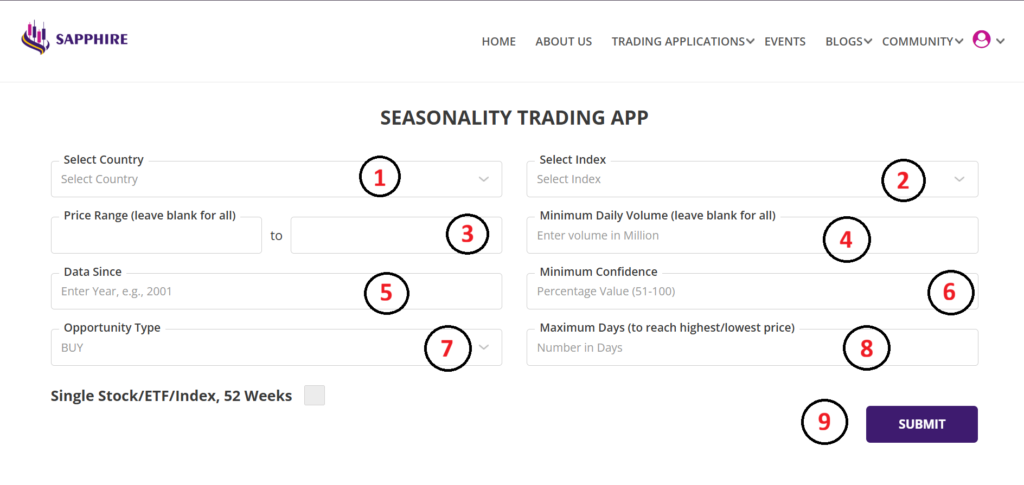
The input filter criteria are as follows:
1. Select Country: Based on your subscription, you would be offered the selection of the countries from the pull down menu. If you subscribe to multiple countries, then you will be able to select one of those countries from the pull-down menu for running the Seasonality app, you can run the app only for one country at a time.
2. Select Index: The Seasonality report can be run one Index at a time for the selected country. If the selected country has multiple indexes or pre-configured list of Stocks and ETFs, you will be able to pick one of those Indexes or lists from the pull down menu for running the app.
3. Price Range: This is an optional parameter. If you want to look for Stocks or ETFs only within certain price range, then select the range in these two boxes, the left being the lower range and right box being the higher range. As an example, if you want to look for Stocks or ETFs above certain price, then only input the lower range parameter leaving the higher range blank. If you want to see for all Stocks or ETFs, then, leave both boxes blank.
4. Minimum Daily Volume: This is an optional parameter. If you want to only find Stocks or ETFs with daily trading volume above certain number, then type in the number in this box in millions. As an example, if you would like only to trade highly liquid Stocks or ETFs with daily trading volume of 1 million, then type in “1” in this box. If you want to see all Stocks or ETFs irrespective of their trading volume, then leave this input blank.
5. Data Since: This input is for the number of years for which you would like the app to perform the seasonality analysis. As an example, if you are running the app in 2026, then an input of 2016 will mean that the seasonality analysis will be performed for 10 year period, from 2016 to 2025 to provide you the probability of the trades for year 2026. It is recommended that the seasonality analysis is done for a minimum period of 10 years.
6. Minimum Confidence: This input filter is the minimum probability that you would like to trade with. In the app, Confidence is calculated as the % of times when the seasonality patterns had successful outcome to the number of years analysed, either bullish or bearish depending upon the selection of Opportunity Type. If you are looking for Stocks or ETFs with 90% confidence for BUY opportunities, then the same Stocks or ETFs will have a 90% probability of being bullish. Similarly for SELL opportunities.
7. Opportunity Type: Default is BUY. If you are looking for bearish trading opportunities (to profit from falling price of the Stock or ETF), then select SELL.
8. Maximum Days: This is an optional input. If you are looking for Stocks and ETFs which reached the highest price (for BUY Opportunity Type) or lowest price (for SELL Opportunity Type) within certain number of days since trade open, then type in the number of days in this box. Leave it blank to ignore this filter.
9. SUBMIT button: Click this button after you have provided all the mandatory inputs and any other optional inputs.
Things you might like to know: The Seasonality trading app executes millions of calculations using the inputs you have provided on the selected Stocks and ETFs. We have implemented the best of technology to leverage the available computational power to bring the results of analysis fast. It will take several seconds to perform the complete computation and the time is dependant upon the number of Stocks or ETFs in the selected index or list.
As an example, analysis of 500 Stocks in S&P500 index will take more time than 100 Stock NASDAQ index or 300 Stocks ASX300 will take more time than 100 Stocks ASX100 and likewise.
Summary report - Seasonality trading app
On completion of the analysis, the summary report is presented as shown in the image below.
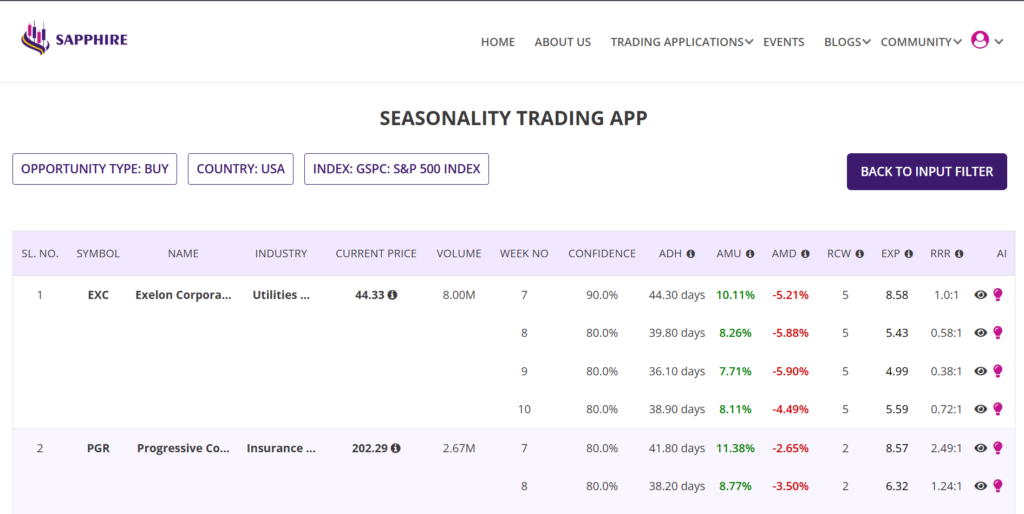
Summary report can run into several pages depending upon your inputs as well as how many Stocks or ETFs met the seasonality criteria set by you during certain weeks of the year. Please scroll up and down to review each row before you pick one or more of the Stocks or ETFs to drill down for further analysis.
Please note:
The report page (both Summary and Detailed report to be discussed little later) tries to automatically adjust to the screen size of your computer monitor based on your computer’s setting. But sometimes it is possible that report page is larger or smaller than your computer screen and some parts of the report and/or menu may be obsecured from view or look staggered or too small to read. If that happens, please press the “Ctrl” button of your Windows computer and while gently rolling the mouse wheel to adjust the size of the report to your computer’s screen size for full visibility. If you are using a Mac computer, try option + command + mouse wheel for same results. If that does not work, you may need additional setting changes in your Mac, check your computer’s manual.
Understanding the Summary report
Let us break it down for you so you know what does the summary report contain and how to interpret the information provided in various sections of the report.
First up, to keep you informed, the top of the summary report shows you the opportunity type, country and index used for the analysis, see the image below.
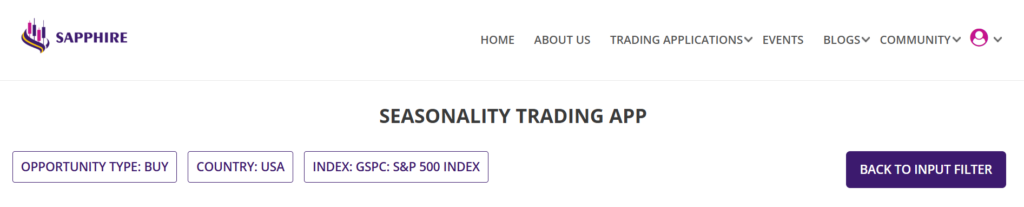
The summary report consists of several columns of information for each row of Stock or ETF as shown in the image below.

The columns SYMBOL, NAME, INDUSTRY, CURRENT PRICE and VOLUME are self-explanatory and respectively provide the information on the Stock or ETF symbol, the company or underlying name, the industry to which the Stock or ETF belongs to, the last traded price and the last volume traded.
Also hovering mouse over “i” near the underlying Stock to ETF price will tell you about the date on which this price was recorded. In other words, it tell you about the freshness of the underlying’s price when you run the app. Usually, the Stock and ETF prices are updated in our system about 4 hours after the stock exchanges close regular trading.

For some countries, the SYMBOL, NAME of the company and the INDUSTRY are abbreviated, as shown in the image below (example summary report of S&P500 Stocks from USA) because of how much screen real estate is available to display all the information. Hovering the mouse over the abbreviations will reveal the full text.
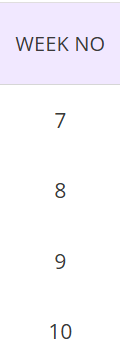
Each Stock or ETF is reported with 4 weeks of seasonality information, from the week following the week in which the app was run, as described earlier. In this tutorial example, the app was run in week 6 and hence the summary report is showing four weeks worth of seasonality information, from the week beginning week 7 till week 10 as shown in the image below.
If you run the app in Week 26, your summary report will show 4 weeks beginning Week 27 till Week 30. That way, not only you are looking at the immediately available trading opportunities of the week of your interest but also three more weeks after that, so as to provide you with a better view of how seasonality played out over a period of time.
Column CONFIDENCE is the probability of the Stock or ETF making bullish or bearish move, based on your desired Opportunity Type, for trades initiated on the first trading day of the week following the week when the app was run. The app provides summary reports for four such weeks as mentioned before.
In the summary report shown below, the example Stock has 90% probability of bullish move (BUY trade) in week 7 of 2026, as the Stock was bullish in 9 out of last 10 years (from 2016 to 2025) during the exact same period of time (beginning of week 7 for 9 week period). For this tutorial example, 10 years of analysis was used, which is from 2016 to 2025, with “Data Since” input as 2016.
During these last 10 years and over the same period of time beginning week 7, the Stock had moved UP by an average of 10.11% (AMU or average move up) and moved DOWN by an average of 5.21% (AMD or average move down). Stock had to be held for an average of 44.30 days (ADH or average days held) for it to reach those high levels. You would be expecting to take profit around those many days after opening the trade, if not sooner.
Similar information is provided for week 8, week 9 and week 10. In this tutorial, the example Stock in the image shown below, has a probability of bullish move of 80% for week 8, 80% for week 9 and also 80% for week 10. Similarly, in those weeks, the AMD, AMU and ADH were as shown in the rows corresponding to the week number.
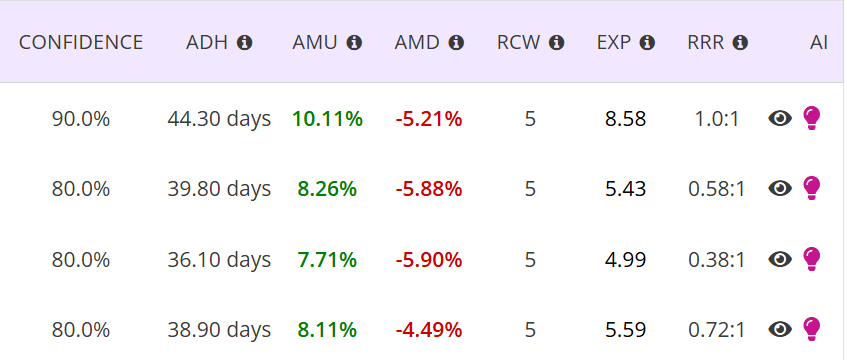
There are two more columns, which provide additional information about the quality of the seasonality performance, as described below. There are some column headers with an “i” next to it, hovering the mouse over the “i” provides definition of those headers.
RCW is Recent Consecutive Wins, gives you an insight of how seasonality played out in recent years or the number of successive wins up to the last trading opportunity.
EXP is Expectancy which would be positive as we are looking for trades only with positive expectancy for long term and sustained profitability. The formula to calculate expectancy uses win rate and reward-risk ratio, both of which are first derived by the app from historical analysis and then expectancy is calculated. Note, win rate is same as Confidence or Probability in the app.
The formula for expectancy is EXP = (Win rate X Average wins) + ((1 – Win rate %) X Average loss), for those who are keen to know.
RRR is Reward-Risk ratio. This is also calculated by the app from the historical data after analysing the seasonality events based on criteria inputted by you.
There are two more columns, one is with a symbol of an eye and the other being AI. Clicking the eye button in the row for each Stock or ETF provides the details report, to be discussed shortly.
Clicking the AI button opens up a new tab in your browser, intended to provide advanced AI analytics covering fundamentals, market sentiments and broker recommendations to compliment the analytics provided by the trading app. This is an upcoming feature, expected to be available shortly, we will keep you updated on its availability.
Pro Tip: Remember, Probability and Reward-Risk Ratio (RRR) are your best friends and your best weapon for predictable and consistent profitability while trading as these two are basis of positive expectancy. We have repeated this mantra several times across various pages of our website and communications, a doctorine that you would like to frame and always be mindful of before making your trading decisions.
While you will pick the Stock or ETF with certain minimum level of confidence but you will need to look at AMU (Average Move Up) and AMD (Average Move Down) very closely as well. For BUY opportunities, you would look for Stocks and ETFs that have AMU of at least 2X of AMD. Similarly, for SELL opportunities, you would look for Stocks and ETFs that have AMD of at least 2X of AMU.
Higher the RRR, better it is for your long term trading success. So, please be mindful of AMD and AMU while picking the underlying Stock and ETF to trade, and always higher than RRR of 2:1.
Detailed report - Seasonality trading app
The last column in the summary report has an eye icon, see right most side of the image in the section above. Click on the eye for a detailed report for the relevant Stock or ETF. The detailed report opens up in a new tab of your browser as shown in the image below.
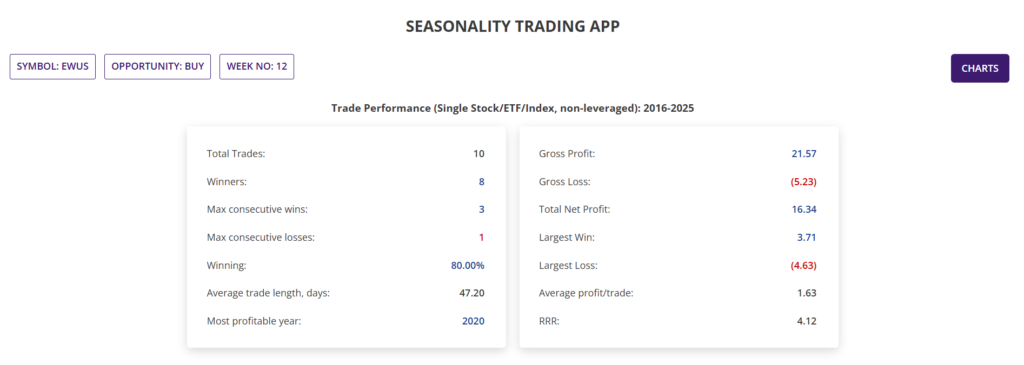
Since you could potentially have multiple detailed report open for each of the Stocks or ETFs for various weeks, the top of the detailed report shows the Stock or ETF being looked into such as Symbol, Opportunity type and the Week no. In this example, you are looking at the detailed report for all bullish (BUY) trades beginning first trading day of week 7 for last 10 years for the Stock EXC.
The detailed report has two different sections providing two different sets of information. In the image below, you have the top section named “Trade Performance (Single Stock/ETF/Index, non-leveraged)“.
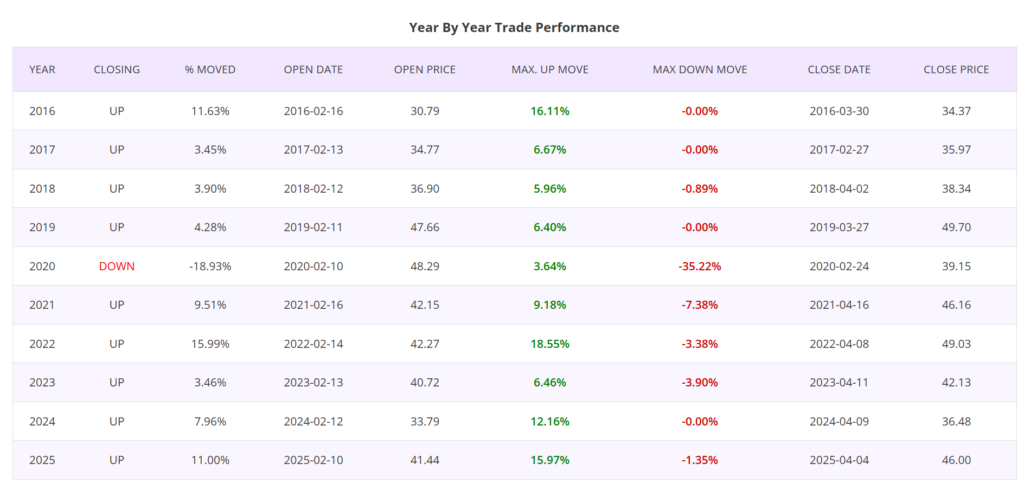
The bottom section of the detailed report is as shown in the image below. It is the “Year By Year Trade Performance” report, we will explain little later in the tutorial.
Understanding the Detailed report - Trade Performance
This is the top section of the detailed report, see the image below. The section provides a consolidated summary of all the trades, if taken in week 7 of every year for last 10 years, with just one Stock or ETF without using any leverage. For simplicity, there is no commission assumed as commissions do vary and some brokerages do not charge any commissions! Also, most certainly, you would be trading more than one Stock or ETF per trade which will affect your commission and net profit from the trades.
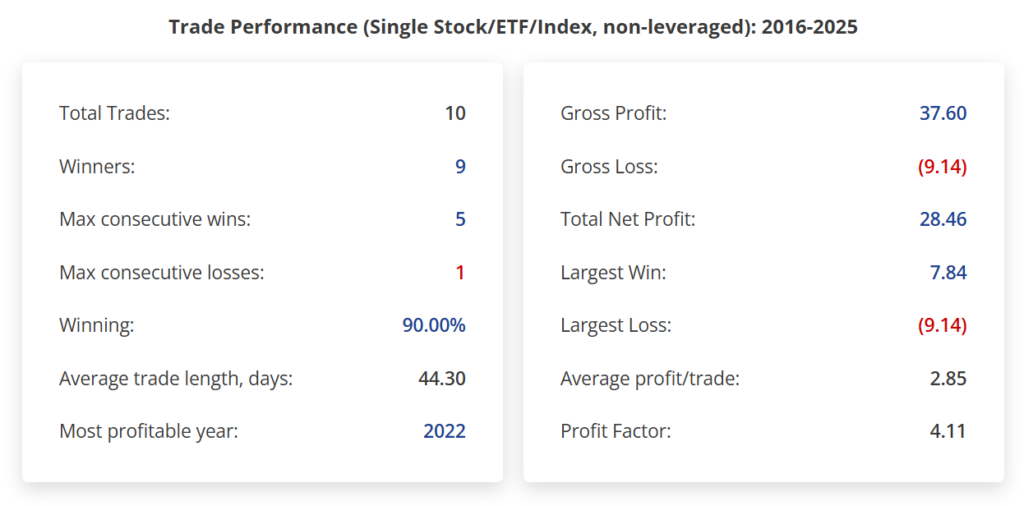
In the left side of the section, in the image above, Total Trades, Winners, Max consecutive wins, Max consecutive losses are self explanatory. Winning is the Confidence as defined earlier, which is calculated as a percentage of the number of winning trades to total number of trades during the analysis years. Average trade length is also the ADH or Average Days Held as in the summary report. And lastly, the section includes the Most profitable year, or the year in which the underlying Stock or ETF made the largest move or highest profit, either bullish or bearish, depending upon your choice of Opportunity type.
The right hand side of the section above shows the trade performance in terms of the underlying currency of the Stock or ETF. As an example, if you are looking at US Stocks or ETFs, then the numbers in this section will be in USD. Or if you are looking at Indian Stocks or ETFs, then the numbers are in INR and so on.
Continuing with the same example, for last 10 trades taken in week 7 in each of last 10 years, the Gross Profit from 9 winning trades would have been 37.60, Gross Loss would have been 9.14, resulting in a Total Net Profit of 28.46 with an average profit per trade of 2.85. The Largest win in those 10 trades would have been 7.84 and Largest loss would have been 9.14, the only loss in last 10 years. Please note that only one unit of Stock or ETF is considered for the purpose of calculation, and also non-leveraged. Most likely, you will trade in units of 100 or 1,000; so do your numbers accordingly.
And lastly, the RRR is a quotient of gross profit and gross loss, which in this examples was 4.11. RRR is unitless as it is just a number, a very important number nonetheless. You would be looking to trade Stocks and ETFs with RRR as high as possible, anything over 2.0.
Please note that RRR is forward looking, meaning you would like to achieve a minimum RRR of 2:1 in your trades whereas the RRR shown by our app is a number derived from historical trade performances. As such, this number could also be called Profit factor. 28
Understanding the detailed report - Year By Year Trade Performance
As the name implies, in this section of the detailed report, you can see how the underlying Stock or ETF moved during the 9 week period beginning the first trading day of Week 7 of the year for each of the years from 2016 till 2025. As an example, in the year 2025, the trade was opened on 10th February at opening price of 41.44. Since opening the trade, the Stock moved UP by 15.97% and DOWN by 1.35% and finally closing after 9 weeks at a price of 46.00 which is 11.01% higher than the opening price.
Similar figures and numbers are provided for each of the 10 years beginning 2016 and till 2025, in this section of the detailed report. The only loss year for the stock was in 2020 when the stock markets around the world was in meltdown because of the Covid outbreak.
BTW, you can see the effect of seasonality that for most years, the MAX UP MOVE was very significantly higher than the MAX DOWN MOVE. Please note that, whenever you trade a Stock or ETF, it will almost never go straight UP or DOWN, it will hover around the current price or make brief moves in adverse direction before it will make big bullish or bearish moves.
Get visual with charts
In the detailed report page, look at the CHARTS button at the top right hand side of the page as shown in the image below. Clicking on the button opens up charts in a separate tab of your browser.

Line chart
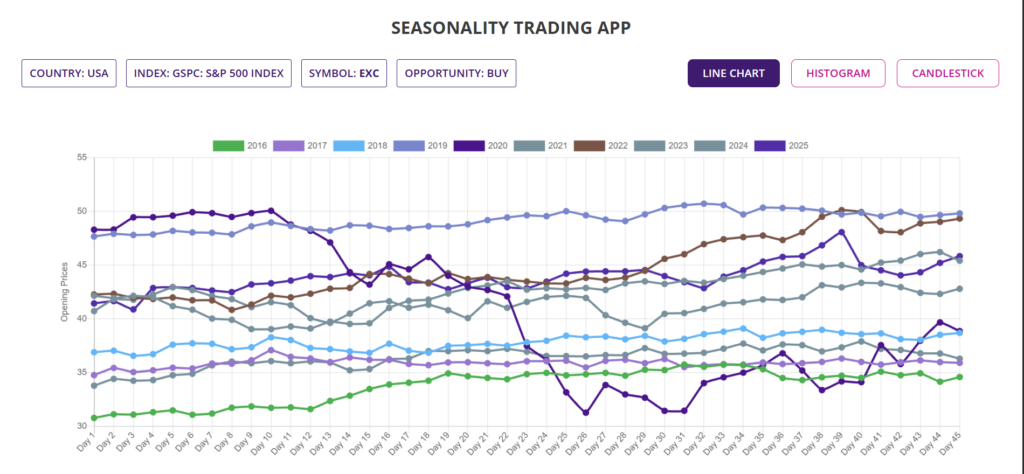
The Chart page opens up with the Line chart by default. The top of the chart page shows you the critical information of interest to you such as the country, index, symbol and opportunity type, so you know what chart are you looking at, see image below.

Line chart is an interactive chart with 10 lines; in this example seasonality analysis for 10 years, each line corresponding to one of those 10 years. Each line is in different colour, identified by the legend at the top of the chart. Click on the legend colur box with the year next to it, to switch that line on or off. You may selectively switch on or off certain lines pertaining to certain years to visually analyse how seasonality had played out in certain years better than the others etc.
Histogram
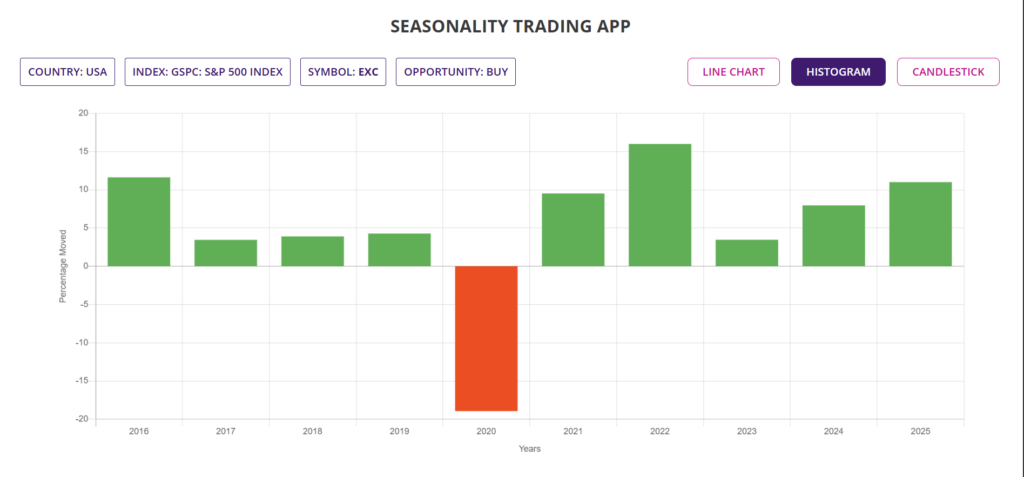
The second chart that can give you a very quick visual clue of the size of the seasonal moves during the nine weeks period is the Histogram chart. You can get to this chart simply by clicking the HISTOGRAM button on the charts page.
The histogram chart is drawn with each bar height proportionate to the percentage move the Stock had made in each of those 10 years of analysis. The histogram will have 20 bars for 20 years of analysis. You may hover the mouse on the histogram bars to know the % move of the Stock for that particular year.
Candlestick chart
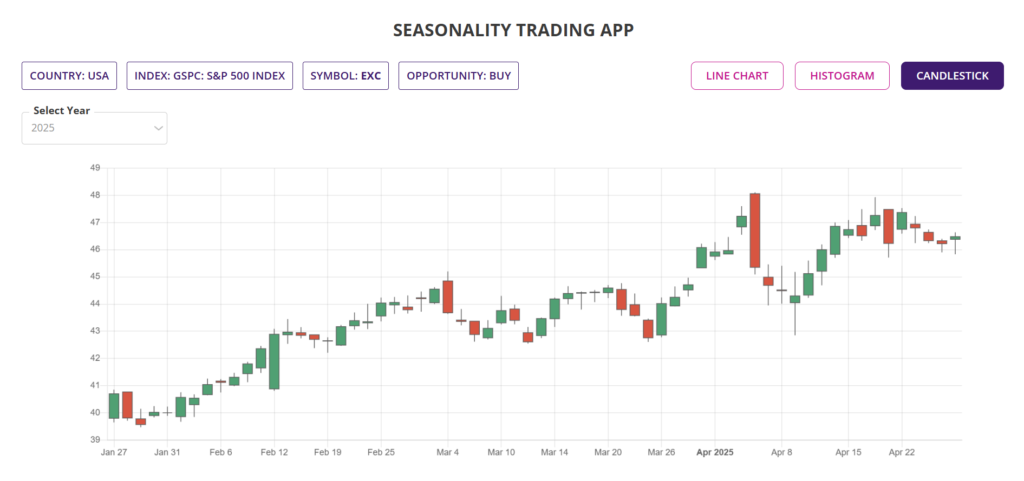
By clicking the CANDLESTICK button at the top of the charts page, you can see one candlestick chart of the Stock (for 13 weeks period) for each year of seasonality analysis; in this example, it is for 10 years. If you run the seasonality analysis for 20 years, then you can see one chart for each of those 20 years.
This is also an interactive chart with a pull-down menu for the period of the year to display. In the example candlestick chart shown in the image below, it is showing the chart for the year 2025. By selecting the year from the pull-down menu on the upper left corner of the page, you can display the candlestick chart for any other year that you analysed for, from 2016 to 2025 in this example.
Single Stock/ETF/Index, 52 Weeks option
The Single Stock/ETF/Index, 52 Weeks option is currently in Beta version and an optional feature, may not be available to your subscription level. The trial version, if available to your subscription, may provide you an alternative method of seasonality analysis for one single Stock or ETF. You are encouraged to provide feedback on this feature if you happen to have access to this and have played with it.
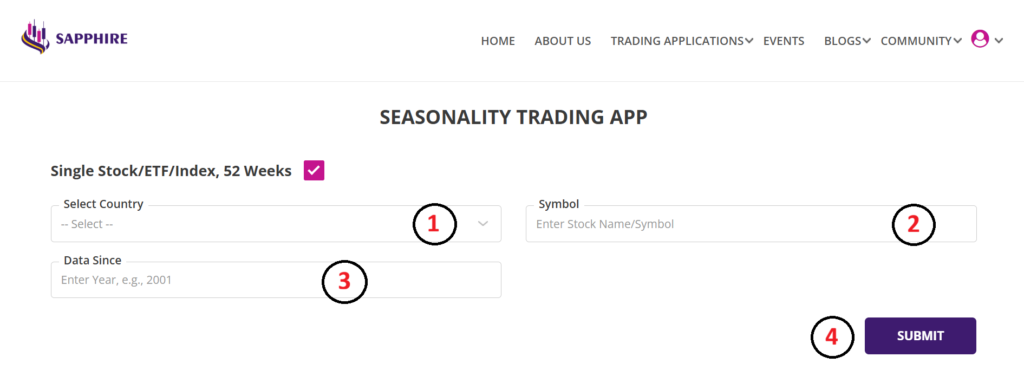
The input screen for this option is much simpler as only three different inputs are required for the app to start analysis, all these are marked by numbers 1 to 3 followed by SUBMIT button marked number 4.
Let’s look at the various input parameters for this option of analysis:
1. Select Country: You can pick the Country as described in the main input section of the app, using the pull-down menu.
2. Symbol: Since this is for analysing single Stock or ETF or Index, you will need to type in the Symbol of the Stock or ETF of your interest. As you start typing the first letter of the symbol, it will auto-suggest the symbols based on your typing input.
3. Data Since: This input has the same meaning as described in the main input section of the app. Please note that, depending upon the Symbol name you provided, the app will automatically pick the year since the Stock or ETF data is available in our Stock database. You may, however, type in another year of your choice for any other number of years worth of analysis.
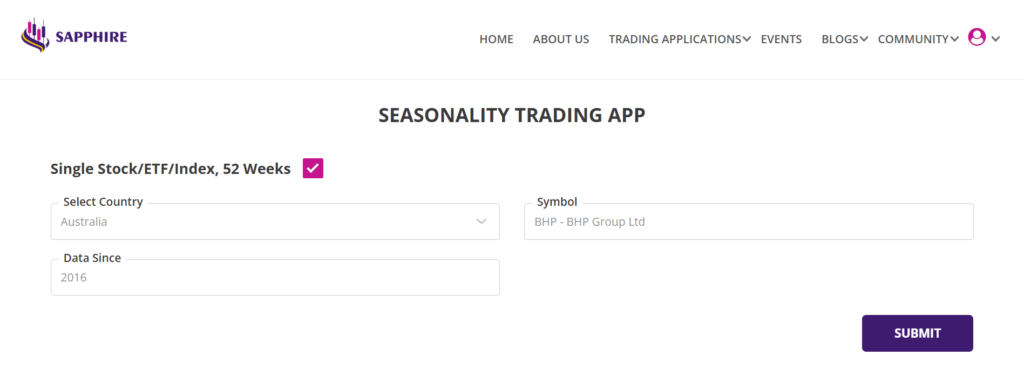
In this example analysis, the inputs used were as shown in the image below.
Summary report - Single Stock/ETF/Index, 52 Weeks option
The summary report for this mode of analysis is discussed in the sections below. The top of the page as shown in the image below is showing the Country and the Name of the single Stock or ETF being analysed for your immeduate reference.

Since it is a 52 weeks report to cover for the 52 weeks of the year, the summary report runs in several pages as shown below. For each of the 52 weeks, you can see the WEEK NO. DIRECTION, CONFIDENCE and other information such as ADH, AMU, AMD, RCW and EXP and RRR. All these columns have the same meaning as in the summary report from the main input section described earlier. The DIRECTION in this summary report is used to mean whether the Stock or ETF was bullish over the 9 week period beginning the first day of the relevant trading week. As an example from the image below, Week 1 of the year was bullish (BUY) 60% of the time or 6 out of last 10 years whereas Week 48 was bullish 90% of the time or 9 out of last 10 years.
In terms of the trading decision, bullish (BUY) trades initiated on first trading day of week 1 of the year for this Stock has only 60% probability and hence may not be worth consideration. On contray, the week 48 has 90% probability and hence may be worth considering. Both these situation are subject to further investigation with details from the Detailed report, to be discussed in a little while,
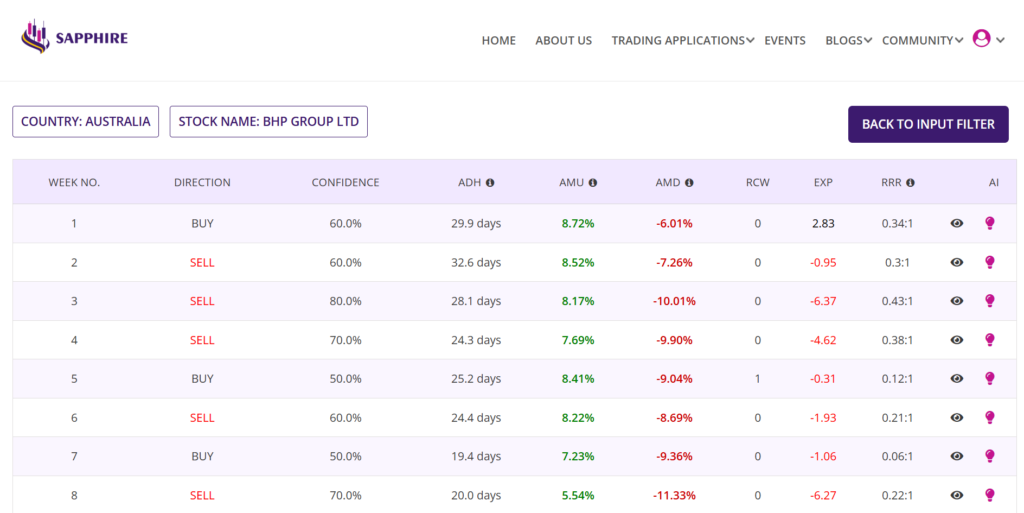
Scrolling down the page will reveal all other weeks of the year, the seasonality performance of those weeks and the associated information.
Detailed report - Single Stock/ETF/Index, 52 Weeks option
The detailed report for each week can be accessed by clicking the eye icon in the right side column of each row. Clicking the eye icon will open up the detailed report for that Stock or ETF of interest and for that week, in a seperate browser tab.
The detailed report for Single Stock/ETF/Index, 52 Weeks option also has two sections, upper section with Trade Performance (Single Stock/ETF/Index, non-leveraged) and a lower section described little later.
The upper section with trade performance has same meaning and details as in the detailed report from analysis with the main input screen. In the example below, week 13 is only shown; you could check out any of the 52 weeks by clicking the eye icon in the row for that week.
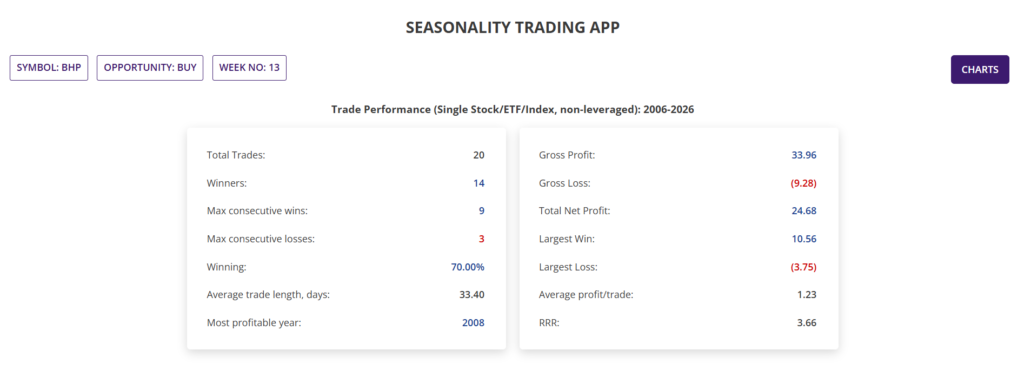
The lower section with Year By Year Trade Performance is as shown in the image below. The columns have the same names and description as in the lower section of the detailed report from analysis using the main input screen.
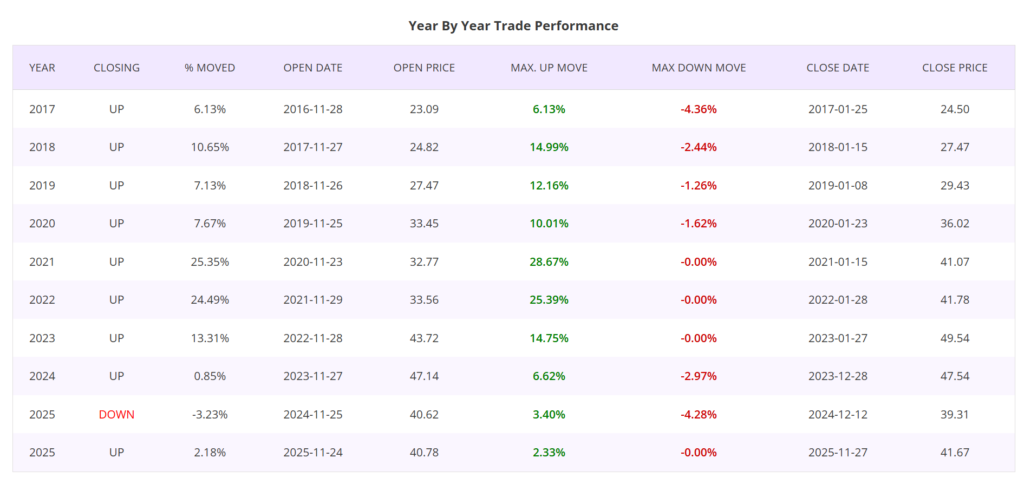
Charts - Single Stock/ETF/Index, 52 Weeks option
Charts for the Stock and ETF analysed by the Single Stock/ETF/Index, 52 Weeks option can be accessed by clicking the CHARTS button on the top right corner on the detailed report as discussed earlier. You can access the same three different types of charts such as Line chart, Histogram chart and Candlestick chart. The description and details provided by the charts are same as those provided in the detailed report when analysed using the main input.
More information on using the app
If you require more information on using the app, please reach out for support to admin@sapphirecapitals.com. Alternatively, you may send a message or chat to us via WhatsApp by clicking the icon on lower right hand side of your computer or smartphone screen. Additionally, keep an eye on invitations to attend live sessions, held periodically, on this and other app we provide. In these sessions, you can ask questions on using the app, reports, charts or whatever and have your answers in a live interactive session.
FAQ
Please review the top section of the tutorial on how you could gain access to the app. At the time of signing up, you would have received an email with temporary password and redirected to the login page to gain immediate access to the trading app.
For regular use of the app and ease of use, it is recommended that you bookmark the Seasonality application page and open the page, as and when you require access. You will be asked to login when you open the page unless you are already logged in from your computer.
There is currently no limit on how many times you can run the app. Since, the app is designed to show you the opportunities beginning the first trading day of the week following the week in which you are running the app, you can run it only once a week to pick the Stocks and ETFs that you would like to trade. This is because, you will get the same results in all days of the week unless you change the input filter criteria.
Sometimes, it is possible that the there are no Stocks or ETFs meeting your filter criteria and hence there are no results to display. In most cases, that would be because you are looking for Stocks and ETFs with very high Confidence. Try running the application again with a lower Confidence input and you should get results.
The trading application runs millions of calculations using the parameters you have provided over the selected Stocks and ETFs in the database. We did our best to optimise the codes so as to bring the results faster but we are only limited by what the contemporary technology is able to provide. The time taken to deliver the results is mostly dependant on the size of the index that you are asking to analyse. As mentioned, an index with 500 Stocks will take longer than an index with 100 or 300 Stocks. We will however, continue to work on bringing superior technology for faster delivery of results, as and when we are able to do so.
Once you have made a decision to trade the underlying Stock or ETF that meets your criteria for Probability and RRR (AMD, AMU ratio), you can trade in many different ways depending upon the country you are in and what trading instrument your broker allows such as Stock, CFD or Options.
If you are allowed only to trade Stock, then you can BUY/SELL the Stock or ETF with strict SL/TP (preferably guaranteed SL). If you are allowed to trade CFD, then you can trade similar to trading Stock as just mentioned, except that you will need much lower capital to trade because of leverage available with CFDs. CFD trading is available in Australia and many parts of Europe, but MUST be treated with utmost care because leverage magnifies the wins and losses. Guaranteed Stop should be used as often as possible for protection of your trading capital.
If you are in a country where Option trading is available and your broker allows you to trade, then you could trade in many different ways, some with built-in risk management. Options trading is a vaste subject, we have a training program which you might like to have a look at. Debit spread is one of the Options trading strategies which strictly limits your risk on the downside with very significant RRR. Keep an watch on our blogs for information on strategies like this.
In Seasonality trading application, the calculations are based on the Stock or ETF price at the opening of market at the first trading day of the week following the week in which the application was run. So, it is recommended that you open the trade as the market opens after the weekend, which will be mostly Monday, unless Monday is a public holiday with no trading in which case it would be Tuesday.
After opening the trade with suitable Stop-Loss (SL) and Take-Profit (TP) setting, you would be observing the market to see if either TP or SL is hit. Your TP and SL setting are going to be AMU and AMD respectively for bullish trades and otherway for bearish trades. Because of this being a high probability trade, you would be expecting your TP to be hit within the ADH days. If for some reason, the Stock or the ETF was hovering close to your TP but not quite getting there, it is adviseable to manually close the trade within 9 weeks after the trade was opened.
You may trade seasonality throughout the year for all 52 weeks. As you will learn while using the Seasonality trading application, that different Stocks and ETFs exhibit seasonal behaviour at different times of the year. So there are plenty of trading opportunities as long as you look for it.
Another point you might like to note while using this trading application or any of our other ones, that your trading decision better be aligned with the broad market trend. If it is a BULL market, you would like to have more bullish trades than bearish trades whereas in a BEAR market, you would like to have more bearish trades than bullish trades. Although seasonal Stocks and ETFs often defy the market trends, but it is better to adhere to these for higher probability of your trades playing out as per your assesment.